Saturday, July 21, 2012

Mouse Keys

What Are Mouse Keys?

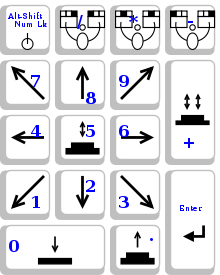
Mouse keys are an alternative way to perform mouse skills for individuals that have physical impairments that would limit their ability to utilize a conventional mouse.  Mouse keys allow the numeric keyboard to emulate mouse functions.  For example, when the user presses the number 8, the pointer will move up.  Pressing the number 6 moves the pointer to the right.  When using mouse keys, the conventional mouse is not required.  The image below helps illustrate these buttons and their correlating movements.


This feature is available with both the Windows and Macintosh operating systems.  Below are screen shots of where to access this feature in both operating systems.


Macintosh:


Windows:


The rate of speed of the mouse point can be modified in the settings to accommodate for the users needs.  Access of the numeric keyboard can be achieved through direct selection of the an individuals hands on the keyboard,  a mouth stick or pointing device on the physical keyboard, or use of the on screen keyboard.  In addition, if is easier for the individual, the mouse pointer can be made bigger for increased independence in the mouse settings (please see an earlier post).  


Mouse keys is another example of how simple modifications can facilitate independence for an individual with a disability.

Tuesday, June 26, 2012

Alternative Mouse Control


There are many ways that an individual with disabilities can control their computer.  If the individual can control their mouse, they can typically control their entire computer.  This can be achieved through alternative access methods such as head, eye, or mouth control.

Using a Quad Mouse:

An example of an alternative mouse is a Quad Mouse or a mouse that the user can control with their mouth.  


A Quad Mouse is a joystick that plugs into a computer that enables an individual with significant physical impairments control their computer.  The user moves the joystick with the mouse to move the mouse pointer.  For example, if the individual moves the mouse up with their mouse, the pointer on the screen moves up.  

How does the user click with this mouse?  

The user can click one of several ways.  The first way is to use dwell click software, see previous blog post describing this:  

http://adaptableworld.blogspot.com/2012/03/what-is-dwell-click-software.html 

The second way to click is through sip and puff clicking.  Through sipping and puffing, the user can emulate all mouse functions.  This includes left and right click, double click, and lock and drag.

An additional way that the user can click is through an ability switch that is mounted at a site of accurate movement.  This can be through a very small movement, such as a toe or finger, or a gross movement, such as a knee or elbow.  When accessing a switch access site, it is very important to choose an area that does not fatigue.  

How does a user type?

The user types using an on screen keyboard.  This can be the keyboard that comes within the accessibility options of the computer.  Additional on screen keyboards can be installed that have features to increase efficiency with typing such as word prediction.

It is always important to remember to trial various types of hardware and software before making the final decision on the most appropriate equipment.  After a fully evaluation, assisting with setup and training is just as important to facilitate independence for the user.

Monday, June 4, 2012

Voice Recognition Software

Voice Recognition Software or speech recognition software translates spoken words into text in regards to computer access or typing on a computer.  It is software that has been around for many years.  It can benefit a large population of individuals; ranging from people suffering with repetitive strain injuries to spinal cord injured individuals.  


Many voice recognition programs require the user to participate in a "training" task.  With this task, the user reads a passage so that the software can "learn" that person's speech patterns and pronunciations of words.  The program might also "read" text that is already saved on the user's computer to see how that individual writes grammatically.  


What are some of the benefits of voice recognition software?


Voice Recognition Software can enable an individual with limited or no upper extremity movement to access their computer independently.  It can be a quick way to get a lot of words on the page possibly decreasing fatigue and pain for certain individuals.  Since we speak faster than we type, once independent in the use, the user could "type" quickly, increasing efficiency and productivity in a work related environment as well as if used for leisure tasks.


What are some of the challenges of voice recognition software?


It can never be 100% accurate.  We have to remember that this is a computer and not a person.  If we say the wrong word, the wrong word will be typed; it cannot infer what was meant.  


Speaking to type is a completely different way of typing and can take some getting used to for an individual that is used to access their computer with their hands.  There can be a higher cognitive load to prepare what you want to say versus just figuring it out as you type.  Extended talking can be very fatiguing.  Often, this type of software would not be best for individuals that fatigue easily or energy conservation is important for their function.


Background noise can affect the accuracy as can if the user has a cold and does not sound like their usual self.  It is best to use this software in a quiet environment.  


It requires quite a bit of memory and processing speed.  If you are thinking of investing in this type of software, be sure to check the specifications required to run this software effectively.  


Finally, there are a large amount of commands that this software requires in order for the user to be completely hands-free.  For an individual with a spinal cord injury, they would need to learn the commands for independence with use.  If the user can access the keyboard, sometimes they choose to use the software to get the words on the page but use the keyboard and the mouse to fix any errors.  The individual has to see what works best for them.


Overall, the use of voice recognition software can be beneficial for the appropriate individual.  As with any assistive technology, there are pros and cons to its use.  It is important to remember that there are many software options available to facilitate independence in an individual.  If voice recognition software is not an appropriate option, there are many other items on the market to try.


Sunday, May 20, 2012

Large Button Keyboards

Earlier, a blog post was done on mini keyboards.  It is also important to know about large button keyboards.  


Typically, mini keyboards are indicated for one handed users or individuals that good fine motor control but impaired gross motor control.  Conversely, large button keyboards are indicated for individuals with impaired fine motor, poor gross motor skills.  Users with poor fine motor require larger buttons since they need larger targets for increased accuracy.  


With both mini keyboards and large button keyboards alternative layouts can be obtained; either the standard QWERTY layout that is most commonly used or an ABC layout.  Depending on the keyboard, additional features can be obtained such as alternative colors or number of keys.

Something as simple as changing the size of the keyboard can facilitate independence for an person with impairments.  Individuals that would benefit from this type of change can vary but are not limited to individuals with Parkinson's disease, stroke survivors, Multiple Sclerosis, or Cerebral Palsy.  It is important to always evaluate all forms of technology, including various large button keyboards to make sure to find the best fit for the user for an adaptABLE world.

Sunday, May 13, 2012

Direct vs. Indirection Selection?

Selection Options for Device Use:

When evaluating an assistive technology device,  the selection method is one of the most important aspects of the evaluation.  The if the appropriate type of selection method is not being utilized then the user cannot be as efficient and might become frustrated with the device use. These selection methods can be used with computer access, communication devices (AAC or SGD), and environmental control units.

Direct Selection:  Direct selection simply is just what it sounds like; you press a switch and your "selection" is made.  An everyday example of direct selection is a light switch; you "flip" the switch and the light turns on or off.  Other examples of direct selection is the left or right buttons on the mouse, dwell click software, or touch screen use/access for computer skills.  Direct selection can be a very quick form of access for the appropriate individual.  If it is not appropriate, then the individual might spend an extended amount of time to fix errors or be unable to effectively access the device at all.  Direct Selection does not need to be performed with a hand but any body part or technical device in order to make a selection.

Indirect Selection or Scanning:  Indirect selection is also known as scanning which is an indirect way of accessing a device.    


The user will access a switch which will begin intermdiate steps or scanning in order to make a choice.  There are several different types of scanning.  Either one or two switches can be used with scanning; these switches are mounted or positioned at the body part with the best strength or that will not create fatigue with use over time.  

The most common form of scanning or indirect selection is linear scanning.  With linear scanning, the user accesses their switch which begins the scan.  This scanning moves row by row.  When the scan gets to the line with the letter or choice that the user wants, they access the switch again; this begins a column scan.  Once the scan gets to the desired choice, the user accesses their switch again and the desired action happens.  This could be a pre-saved phrase for communication or a letter for typing with an on screen keyboard.

Inverse Scanning is performed with the user holds their switch down to being the scan.  The user holds their switch down until the desired choice is highlighted and lets go to have their choice made.

Group Scanning:  With group scanning, the user accesses their switch and groups are highlighted.  As the group with the desired choice is highlighted, the user accesses their switch.  It then will narrow the choices with a linear scan.

Item by Item Scanning:  The user accesses their switch to move the highlight or cursor in order to make a choice.  This method requires multiple switch access "hits" in order to get to the desired choice.

Other, individuals are concerned that scanning is slower than direct selection.  Points to consider are if the individual is unable to perform direct selection without making a considerable amount of mistakes, indirect selection will be more efficient and less fatiguing.  

Indirect selection is appropriate for an individual with limited movement.  For example, if the user has only one area of movement such as one finger, scanning would be an appropriate access method for access of the computer or a communication device.


Positioning is very important for scanning use.  The switch must be mounted to the area with the best strength so that the user will not become fatigued over time.  Switches can be mounted to any surface such as a wheelchair, tabletop, or bedrail.

Considerations with scanning is that it requires a higher cognitive load.  The user must be able to anticipate the scan and understand the cause and effect of indirect selection.

There are many features that can be modified with scanning.  These include:
  • The rate of the speed of the scan
  • The type of scan
  • The type of feedback
    • Audio
      • Click sounds
      • Reading the scan choices out loud
    • Visual
      • Highlight color
      • Magnification of the scan
  • One or two switches
When evaluating an assistive technology device, the type of selection is one of the most important parts of the evaluation and consideration of particular devices.  It is important to remember that the most appropriate access method might not be established within the first session; it can take time to figure out the best method as well as the modifications required to make this method the most appropriate.
Saturday, May 5, 2012

Switch Use

What is a switch?


Switches are used with all forms of assistive technology.  The easiest way to think about a switch is a device that can start or stop a device.  The most common type of switch is activate with some kind of touch, creating the contact of two surfaces or switches to work with an assistive technology device.


What kind of switches are there?


There are literally hundreds (if not thousands) of switches available for assistive technology access.  Switches are meant to be accessed by the available body part or motion that is strongest for the user.  This area of access needs to be consistent and not create fatigue with extended use.  The area of access can also vary dependent on the position of the individual.  For example, a person might use their finger for switch access when in their wheelchair and a sip and puff switch for when they are in their bed.


When evaluating what is the best switch site, it is recommended to evaluate distal to proximal.  This means, start with the hands or fingers.  If this is not an appropriate site, what can be done as we move up?  Are gross movements easier than fine movements?  If the individual cannot use their arms, what other areas are appropriate?  


Addition considerations for switch use is the amount of force required to press the switch (if it is a tactile switch).  When looking at the "specs" of the switch, you can find the amount of force in ounces or pounds for access.  This is very important for an individual with limited movement or a harder switch user that needs a more durable switch.


How can a switch be mounted for access?


There are many ways that a switch can be mounted.  Switches can be mounted to a wheelchair, tabletop, or any other surface for best access.  If appropriate, Velcro can be instrumental in attaching a switch for access.  


If additional mounting options are required, a simple tabletop mount might be appropriate.


Removable mounts can be used that would attach the switch to a wheelchair, tabletop, or any other surface.  These mounts can be purchased with varying arm lengths and plate sizes.


More permanent mounting can be done in wheelchair components such as in the headrest.  Conductive fabric and clothing can be used to create novel switches, making it a part of clothing.


What if the user cannot "hit" a switch?


There are switch options for an individual with limited or lack of movement that would be required in order to touch a switch.


Sip and puff:  A sip and puff switch is a great option for users with limited movement or issues with significant fatigue when attempting to touch a switch. Through the actions of sipping and puffing, the user can control their assistive 
technology device.


Proximity:  A proximity switch is activated when the user gets closer to the switch.  Dependent on the switch chosen, the range of how close the individual the user has to get to the switch to activate it can vary.  This switch can be mounted pointing at any area for the user.


EMG switch:  An EMG switch is also known as a muscle twitch switch.  A muscle twitch sensor is placed on a muscle that can be used consistently without pain or fatigue.  When the user contracts the muscle, it activates the assistive technology service. 


Sound switch:  This is a switch option that has been around for sometime.  The Clapper is an example of a sound switch.  When the individual makes a sound, it activates the device such as a communication device.  There are very sensitive sounds switches available allowing for changes in the sensitivity, how loud or soft the sounds needs for access.  


To conclude, the importance of switches and their positioning is very important. If the individual is not setup with the best switch for the strongest access site the user will not be efficient or conserve their energy.  Through a full evaluation, an appropriate recommendation can be made not only for the device but for the appropriate access method. 

Sunday, April 22, 2012

Using a Joystick as the Mouse

There are many options for alternative mouse hardware.  In earlier posts both a head mouse and a trackball mouse have been explored.  What about a joystick mouse?


Traditionally, a joystick has been associated with gaming devices.  In addition to gaming, a there are joystick mice available that can be very helpful for individuals with both physical and cognitive disabilities. 


The standard mouse that comes with a desktop computer can be very challenging for people with various impairments.  The movements required for effective mouse use can be very difficult.  How many times have you had to lift up the mouse and place it back down to get your pointer back on the screen where you can see it?  What if the user has upper extremity weakness from a stroke or tremors from Parkinson's?  How do you think this would affect their mouse function? 


It can also be difficult for individuals to understand the cause and effect of the types of movements required to move the mouse that translate to the movements of the pointer on the screen.  This can make the mouse extremely difficult for the user with cognitive impairments.


The use of a joystick mouse can eliminate these problems.  With a joystick mouse the movements seem more intuitive than with a standard mouse.  For example, if press the joystick up, the pointer moves up.  Many hardware options can include alternative methods for clicking as well as the shape and size of the joystick itself.  This can assist people with grasp issues by having the flexibility to change the joystick top.  


The joystick mouse pictured above comes with interchangeable joystick top options as well as buttons for double click, single click, right click, lock, and speed changes.  The accessibility of the buttons can create increased ease of use.   


In addition, if access of any joystick buttons are a challenge, any ability switch can be used for click features.  This can be plugged directly into the joystick mouse, dependent on the model, or with the "swifty" USB adapter for ability switches.  Dwell click software (discussed in an earlier post) can also be used for click needs.


There are joystick mice that are not only geared towards individuals with disabilities but people that require a more ergonomic computer workstation setup.  


The mouse pictured above will hold the users hand in an ergonomic position in an attempt to decrease or eliminate repetitive strain injuries.  The right and left click is performed by the thumb positioned at the top of the joystick.  Again, if clicking is an issue, ability switches or dwell click software can be used.


Additionally, software can be used to "turn" any USB joystick into a mouse.  The software acts as a driver, interpreting joystick movements into mouse movements to move the pointer. 


Always remember that changes in the control panel might still be required to facilitate independence with any adaptive mouse hardware or software.  With the appropriate adaptations, the mouse does not have to be a challenge for a wide range of individuals, helping to create an adaptABLE world!